## Prerequisites
The first thing we need to publish our web page to the Google Play store is a fully compliant PWA, that means:
- > Our web has a manifest.json
- > It has a serviceWorker properly registered
- > It has a Lighthouse score of score of 80+
If our web complies with this requiriments we are good to go.
## Installing Bubblewrap
To install Bubblewrap we need to have node.js and npm installed on our system. If we have it, it is as simple as run:
npm install @bubblewrap/cli - npmEasy enough, right?
## Initializing the Android project
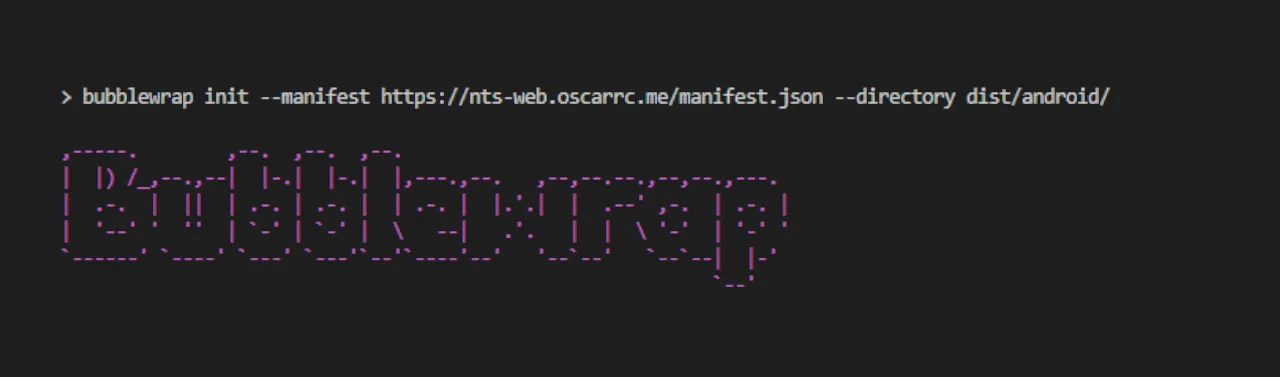
With the Bubblewrap cli installed we are ready to initialize our project:
bubblewrap init --manifest <web_url>/manifest.json --directory <android_project_dir>The --manifest parameter is the url of the page manifest.json, for my NTS-web app it will be https://nts-web.oscarrc.me/manifest.json
The --directory parameter is the directory where the Android project will be generated.
Other flags available for this command are:
- >
--chromeosonly: this flag specifies that the build will be used for Chrome OS only and prevents non-Chrome OS devices from installing the app. - >
--metaquest: this flag specifies that the build will be compatible with Meta Quest devices. - >
--alphaDependencies: enables features that depend on upcoming version of the Android library for Trusted Web Activity or that are still unstable.
On the first run Bubblewrap will ask if we want to install the Java JDK and the Android SDK, I strongly recommend to do so, if not you’ll have to provide your own.
Now, we just have to provide the required information to the wizard, if any, because it will try to pull all the necessary information out of the manifest.
It will ask for a keystore to sign the generated files, if there isn’t one, the cli will take care of the generation. Please keep it safe and don’t forget the password.
When it’s done our project is ready and we’re ready to build our apk and bundle.
## Building the app
In order to build the apk and bundle files we have to run the following command inside the project directory:
bubblewrap buildThat is enough to get our app built, but the command also has some options that you might find handy:
- >
--skipPwaValidation: skips validating the wrapped PWA against the Quality Criteria. - >
--skipSigning: skips signing the built APK and App Bundle. Other signing-related flags are ignored when this is used. - >
--signingKeyPath: path to keystore to use for signing the built APK and App Bundle. Overrides signingKey.path specified in twa-manifest.json. - >
--signingKeyAlias: key name. Overrides signingKey.alias specified in twa-manifest.json. - >
--manifest: directory where the client should look for twa-manifest.json.
This will give a signed apk and aab bundle to upload to the Play store.
## Updating our app
Updating the app is, as well, very simple, a single command is enough:
bubblewrap update --appVersionName <version> --manifest <web_url>/manifest.jsonIf you don’t want to upgrade de version you can add the flag --skipVersionUpgrade.
## TWA apps considerations
This being Google has to have some downsides. In this case, if you want to monetize your app in any way there will be some considerations to have in mind:
- 1> AdSense is not allowed in Play Store apps and there is no way to integrate AdMob in a website.
- 2> It has to comply with the same payment rules as regular apps. This means, if you sell memberships or similir within your website and you accept card or Paypal (or wathever) means of payment your app will be rejected. You will need to use the Digital Goods API;
Also it is important to make sure Bubblewrap, the JDK and the SDK are updated, if not, the build platform target will be lower than required by Google and your app bundles will not be accepted.
And this is it for this article. This method of generating TWA apps is working well for me and is way less cumbersome than the other availbe methods, at least for simple apps.